Add your own recipes
The ‘My Recipes’ feature is a convenient way to save, log, and reuse your favourite recipes, making tracking more efficient.
Accessing ‘My Recipes’
- Navigate to the meal where you want to add the recipe (e.g. lunch).
- You’ll see multiple tabs on the navigation ribbon - Recent, Frequent, My Meals, and My Recipes - select ‘My Recipes’.
Creating a Recipe
- Tap on the plus button at the screen’s top right-hand side.
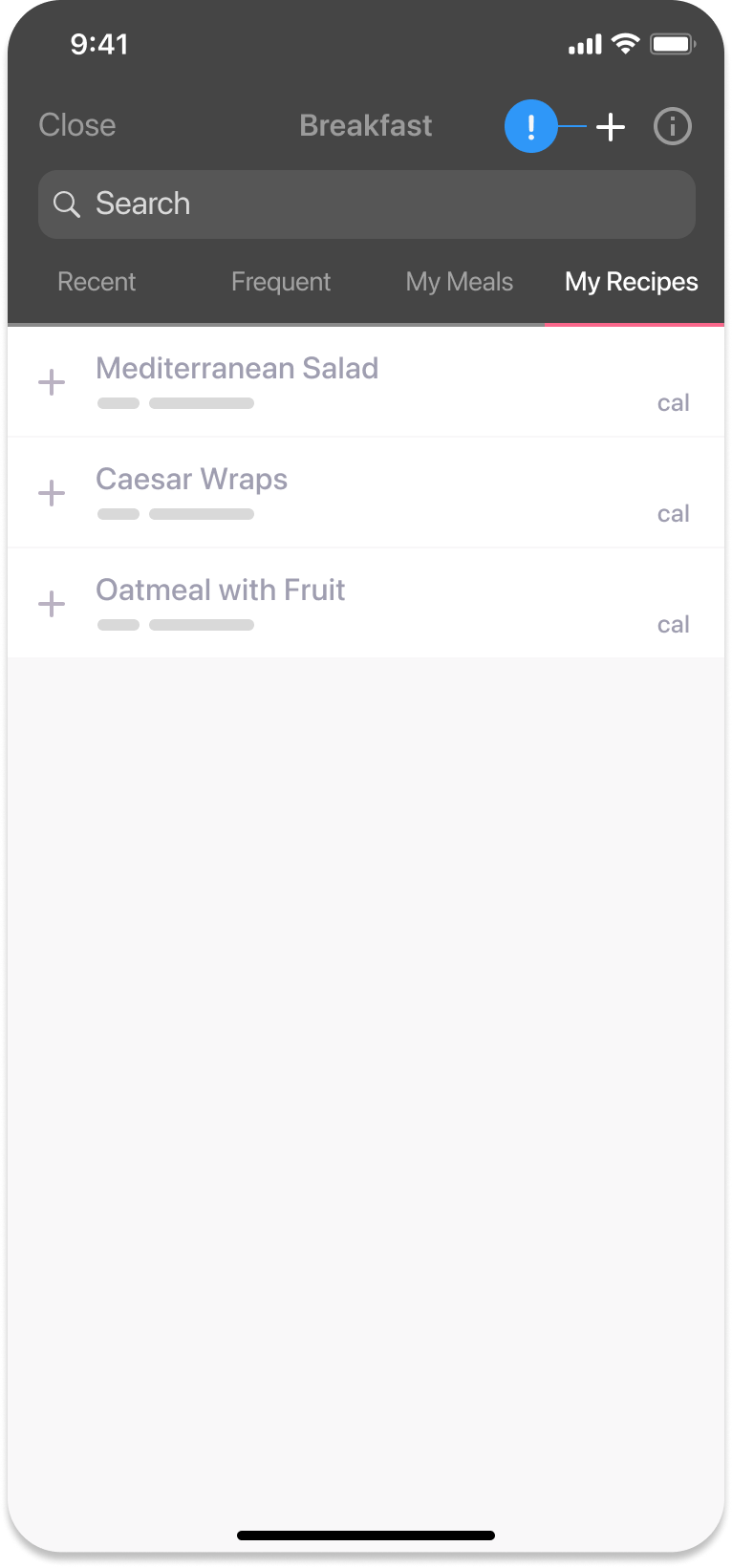
- Input information like the recipe name and the number of servings it makes, and add ingredients.
- (Optional) If you’re using a recipe from a website, you can copy and paste the ingredients list into the app. After pasting, double-check to make sure everything is correct.
- Tap ‘Add item’ to add ingredients to the recipe.
- Once you’ve added all the ingredients, tap ‘Save’ at the top right-hand side of the screen.
- You can log this recipe in your food diary by tapping the blue plus icon next to the left of the recipe’s name.
- Tap the pink ‘Log Item’ button to finalize your action.
Editing
If you want to edit a recipe, simply tap on the recipe on the 'My Recipes' tab, then tap 'Edit' in the top right corner. From there, you can adjust ingredients and/or serving sizes, then tap 'Save' to confirm.
One-time Modifications
Need to swap an ingredient or adjust a portion size just one time? Simply tap on any of the ingredients to edit it or use the 'Add Ingredient' button to add something new.
Was this information helpful?