Appointments
Scheduling an appointment
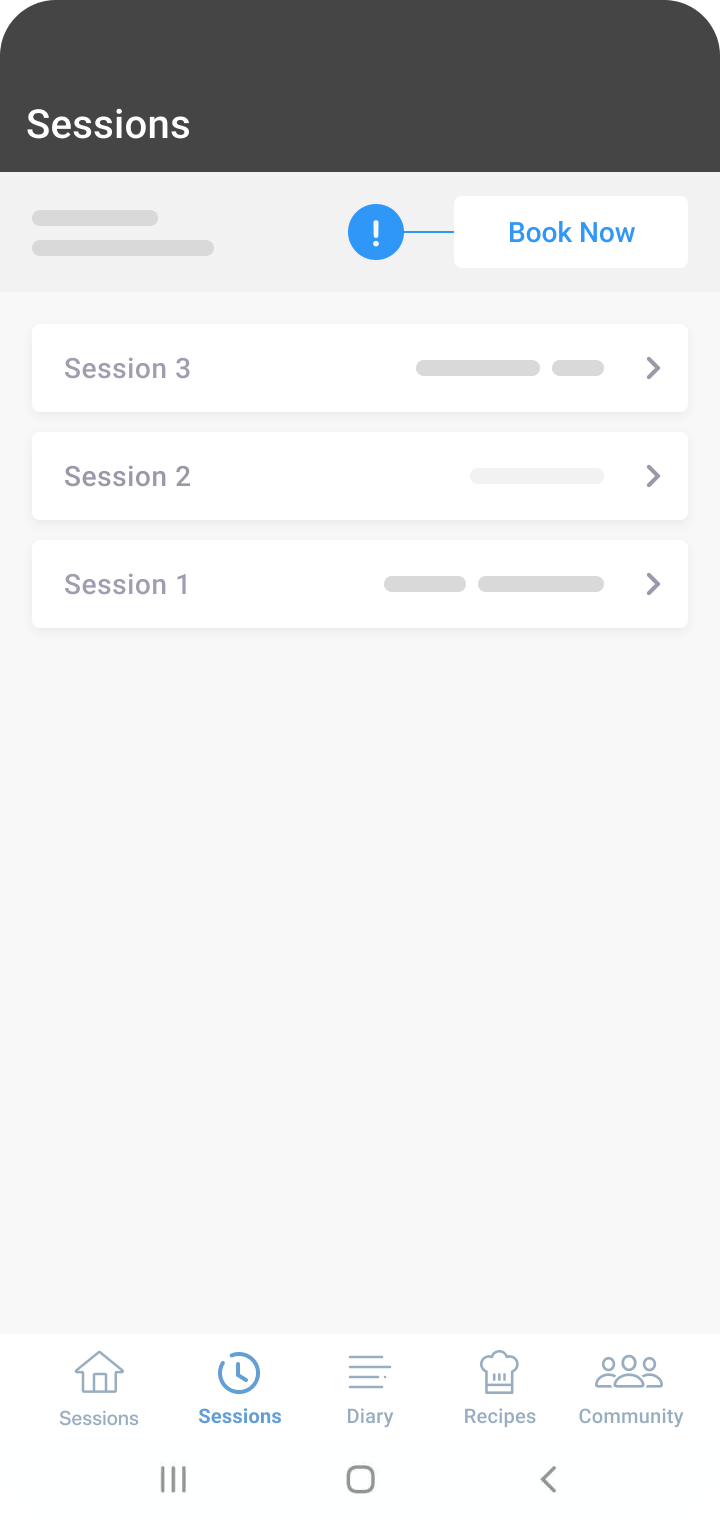
Select the ‘Sessions’ tab from the bottom navigation bar.
- Tap the ‘Book Now’ button on the screen’s top right-hand side.
- If prompted, log in with your details.
- Tap the pink ‘Schedule Appointment’ button.
- Choose the appointment you’d like to schedule.
- Pick a date and time for your appointment. Tap the ‘More Times’ button if you don’t see any available times.
- Confirm your chosen date and time.
Note
The date and time will be displayed at the top of the screen if you have already scheduled an appointment.
Rescheduling or cancelling an appointment
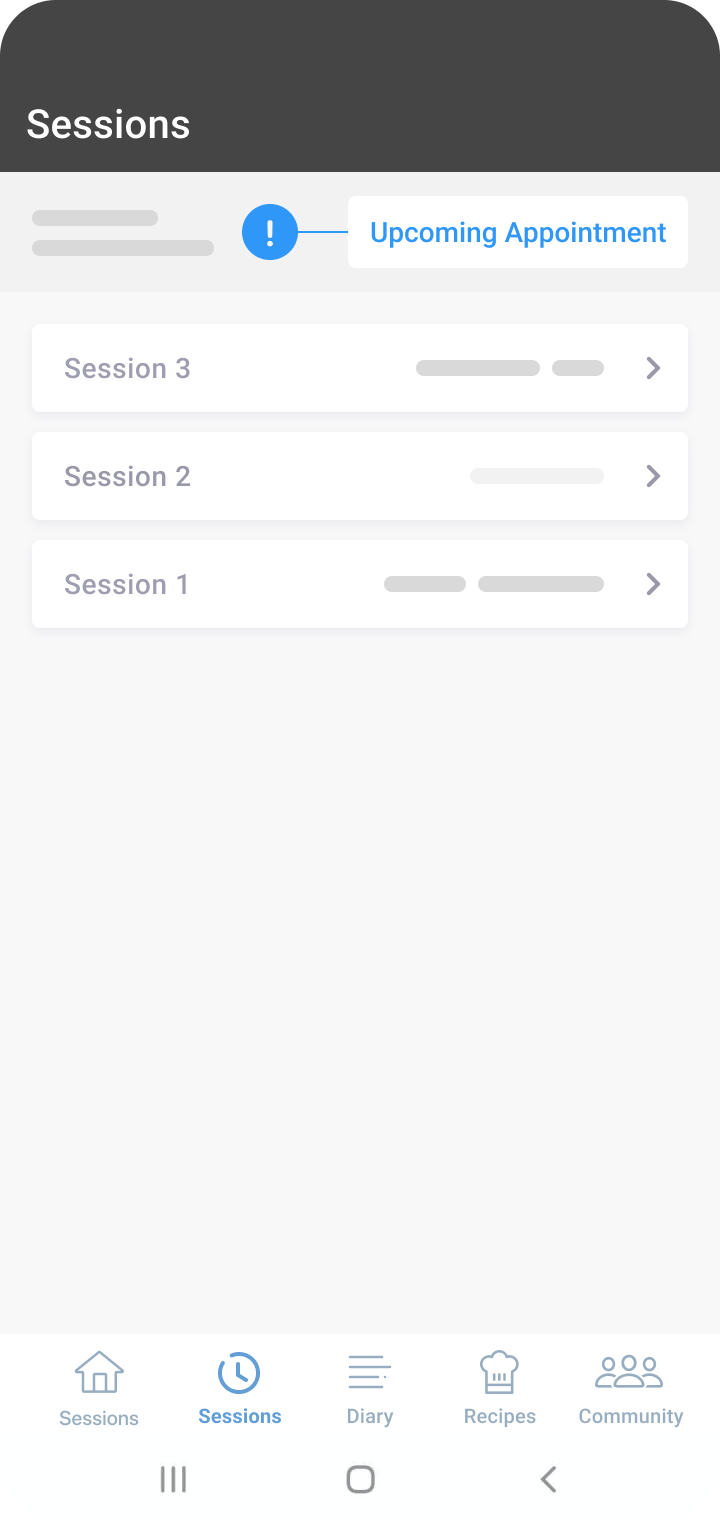
- Navigate to the Session tab from the navigation bar.
- Tap the ‘Upcoming Appointment’ button, highlighted in blue/purple.
- Tap the three dots on the right-hand side of the appointment, allowing you to cancel or reschedule.
- If you reschedule, you’ll be returned to the calendar to select a new date and time. Confirm the rescheduling by clicking the pink ‘Confirm and Reschedule’ button.
Note
Any cancellations or rescheduling must be done 24 hours in advance. Barring extenuating circumstances, you may have to miss the appointment and move on to the next one.
Session summary
This feature contains summaries from your various appointments, providing a single reference point. Be aware that your session summaries are:
- Collaborative: Both you and your dietitian can add notes or findings from your appointments.
- Accessible: You can also use a voice recorder to input notes.
- Downloadable: A download button is available at the top right corner.
Note
You’re encouraged to download these notes for future reference.
Was this information helpful?